Content Search
Content Search lets you search across the contents of every file in a project from the Studio file explorer. Use it to find code, variables, services, configuration values, and other text without opening files individually.
Open Content Search
To open Content Search:
- In the Studio file explorer, click the Advanced Search icon next to the filename search box.
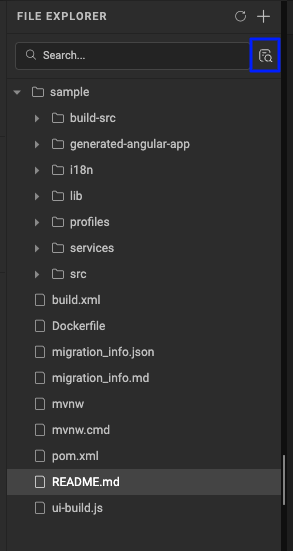
- The file explorer switches to Content Search mode.
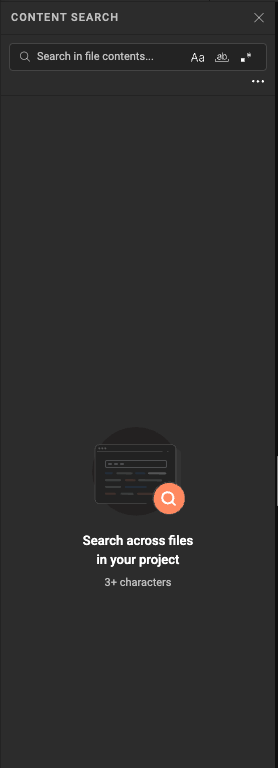
- Enter the text to search for.
Content Search can also be opened with a keyboard shortcut:
- Windows/Linux:
Ctrl + Shift + F - macOS:
⌘ + Shift + F
Content Search starts matching only after the search term contains at least 3 characters.
Search options
Content Search provides the following options to refine a search:

| Option | Description |
|---|---|
| Case Sensitive | Matches the exact capitalization of the search term. |
| Whole Word | Matches only complete words, not substrings. |
| Regex | Treats the search term as a regular expression instead of a literal string. |
| Files to include | Limits the search to a specific project scope. |
Search scope
Click the More options (⋯) icon in the Content Search panel to reveal Files to include.

The Files to include dropdown limits a search to specific types of files in the project. All is selected by default.

| Scope | Searches |
|---|---|
| All | All supported files in the project |
| Design Tokens | Files related to design tokens |
| I18n | Localization files |
| Pages | Page related files |
| Profile | Profile related files |
| Resources | Project resource files |
| Services | Service related files |
| WMX Components | WMX component files |
Selecting a specific scope narrows the results when the part of the project that contains the content is already known. For example, to find a string used only in pages, select Pages from Files to include before searching.
View search results
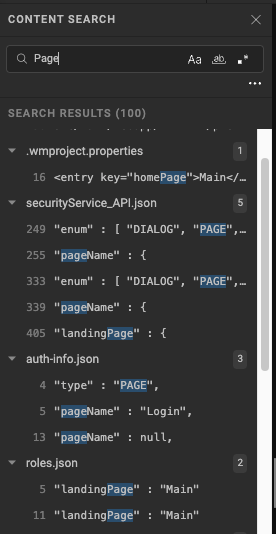
For every match, Content Search displays:
- File name — the file containing the match
- Line number — the line where the match occurs
- Matching line — a preview of the line containing the search term
- Highlighted match — the matching text highlighted within the preview
Results are grouped by file, and each file shows the number of matches found in it.
Navigate and open results
Search results can be reviewed with the keyboard or the mouse:
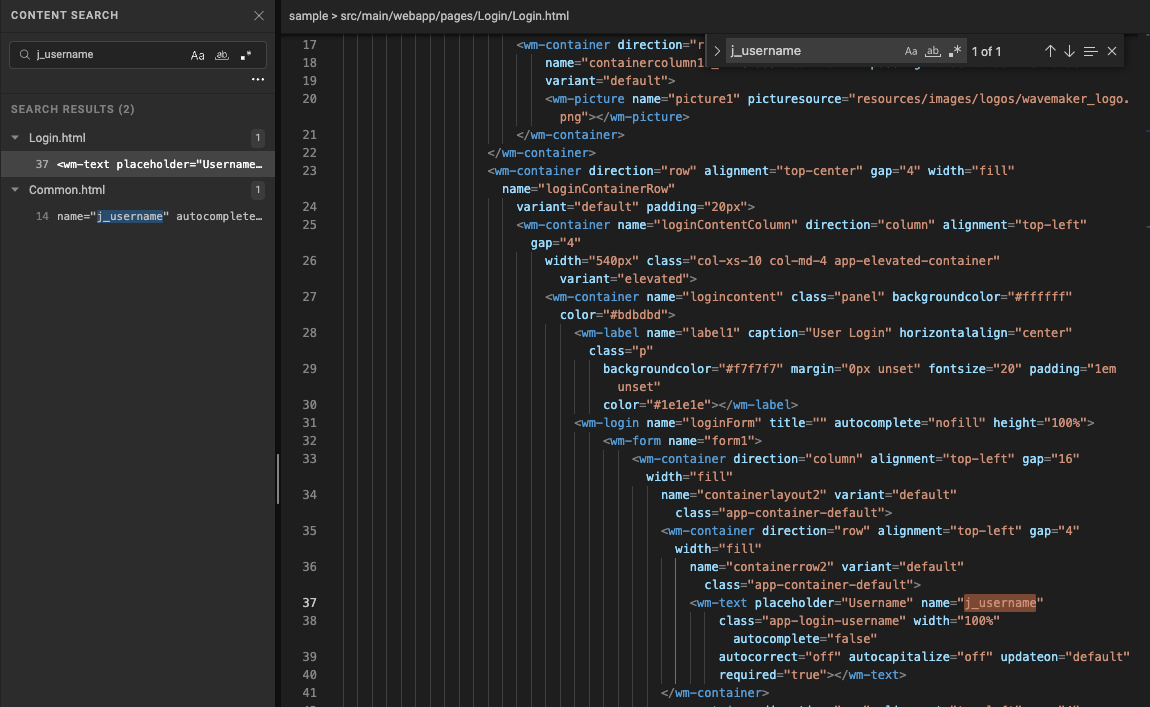
- Press Arrow Down to move to the next result, and Arrow Up to move to the previous one. The selected result is highlighted as you navigate.
- Press Enter to open the selected result, or click a result directly to open the corresponding file at the matching line.
Use regular expressions
Enable Regex to search using a regular expression instead of an exact text string. Regular expressions are useful when searching for a pattern or multiple variations of a value rather than one literal string.
Close Content Search
Click Close in the Content Search panel to return to the normal file explorer.
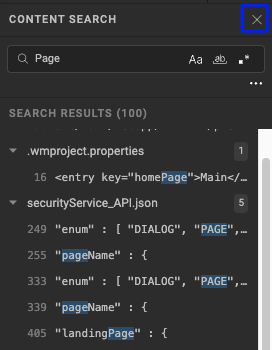
Example: find all references to a string
To find every reference to j_username before refactoring it:
- Open Content Search.
- Enter
j_username. - Review the matching files and line numbers.
- Use Arrow Up and Arrow Down to move between results, or select one directly.
- Click the result, or press Enter, to open the file at the matching line.
- Review or update the reference as required.
When to use Content Search
Content Search is useful when you need to:
- Find where a variable or service is used.
- Identify references to a deprecated API or configuration.
- Find all occurrences of a string before refactoring it.
- Locate code when the content is known but not the filename.
- Verify that a reference has been fully removed from the project.
- Search across HTML, JavaScript, CSS, Java, JSON, XML, and other supported project files.
Content Search vs. Filename Search
| Search type | Searches | Use when |
|---|---|---|
| Filename Search | File and folder names | The name of the file or folder is already known |
| Content Search | Contents of project files | You need to find a string, code, variable, or pattern, regardless of which file it is in |
Content Search allows a project to be searched without switching to an external editor or terminal.
Keyboard shortcuts
| Action | Windows/Linux | macOS |
|---|---|---|
| Open Content Search | Ctrl + Shift + F | ⌘ + Shift + F |
| Next search result | Arrow Down | Arrow Down |
| Previous search result | Arrow Up | Arrow Up |
| Open selected result | Enter | Enter |